

I am trying to use the provisioning in fspbx that is available under Devices. I can see my T33G there with the correct MAC address. However, if I try to change the Device Keys there (Key 2 etc.), it has no effect on the phone. What am I missing?
Provisioning a Yealink T33G
- Thread starter philsh.caa
- Start date
-
- Tags
- provisioning yealink
You are using an out of date browser. It may not display this or other websites correctly.
You should upgrade or use an alternative browser.
You should upgrade or use an alternative browser.
- Status
- Not open for further replies.

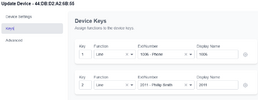
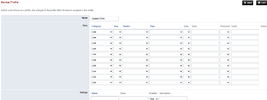
How do the "Device Keys" settings interact with the Device Profile? Does one have priority over the other?
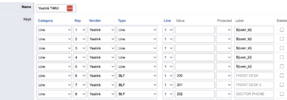
Still nothing. If I look at devices, it does not show as being provisioned. Do I need to set something on the phone itself to allow this?
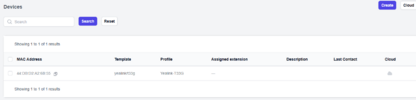
Is this the correct folder for the templates?
/var/www/fspbx/public/resources/templates/provision/
/var/www/fspbx/public/resources/templates/provision/
In the documentation I see the following:
What is the correct provisioning URL if I use the default locations?
What you typically do in the Devices section
A normal workflow looks like this:- Create a Device
- Vendor / Model (if applicable)
- MAC address (most common identifier)
- Optional: friendly name (e.g., “Front Desk Phone”)
- Assign one or more Lines
- Link the device to an extension (or multiple extensions)
- Set line positioning (Line 1, Line 2, etc.)
- Provision the phone
- Point the phone to your provisioning URL (or use DHCP option 66, depending on your environment)
- Reboot the phone so it downloads its config
What is the correct provisioning URL if I use the default locations?
In your screenshot, I see that you have not assigned any lines to this device. You need to have at least one.
And yes, you absolutely need to point the phone to the provisioning URL:
In the default settings, you also need to set the provisioning username and password.
Before you point the phone to the provisioning server, you can try to open the URL in the browser and see if it gets generated correctly.
Make sure the above URL matches your MAC address.
And yes, you absolutely need to point the phone to the provisioning URL:
Code:
https://yourdomain.com/app/provisionIn the default settings, you also need to set the provisioning username and password.
Code:
http_auth_username
http_auth_password
Before you point the phone to the provisioning server, you can try to open the URL in the browser and see if it gets generated correctly.
Code:
https://yourdomain.com/app/provision/44dbd26b55.cfgMake sure the above URL matches your MAC address.
Check the nginx access log. You can also call me, and I'll troubleshoot it for you.is there a log that I can see? I followed the guide and still can't provision a Polycom VVX411
There are modern and legacy templates for the VVX 411. Depending on which one you choose, the provisioning URL is different. You can see the template version in the screenshot. If the version is present, then it's a modern template. If there is no version, then it's a legacy template.
Legacy URL:
Code:
https://yourdomain.com/app/provisionModern URL:
Code:
https://yourdomain.com/prov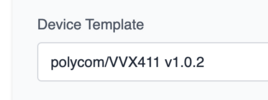
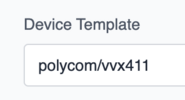
I manage to get the provisioning working on my LAN and I wanted to start doing all test from external sources, I can access the platform trough mydomain.com but phones wont register and the provisioning doesn't work from external, I can reach the ports needed trough my firewall, is there something that I need to allow both the provisioning and the registration?
Does this URL open for you? Replace MACADDRESS with your real MAC address (all small letters).
- Status
- Not open for further replies.